How to Test Your Microphone (and Fix a Mic That's Not Working)
You join the call, start talking, and someone types "we can't hear you". Or you finish a vocal take and play back a faint whisper under a wall of fan noise. Both are avoidable.
A mic that sounds dead or bad is rarely a broken mic. It is usually a blocked permission, the wrong input, a mute switch or a gain setting. Here is a quick way to check yours, and what to fix when the check fails.
The quick way: test it in a browser tab
Nothing to install, and it works with any input your browser can see.
- Open the woopo mic test and press Start mic test.
- The first time, your browser asks to use the microphone. Allow it.
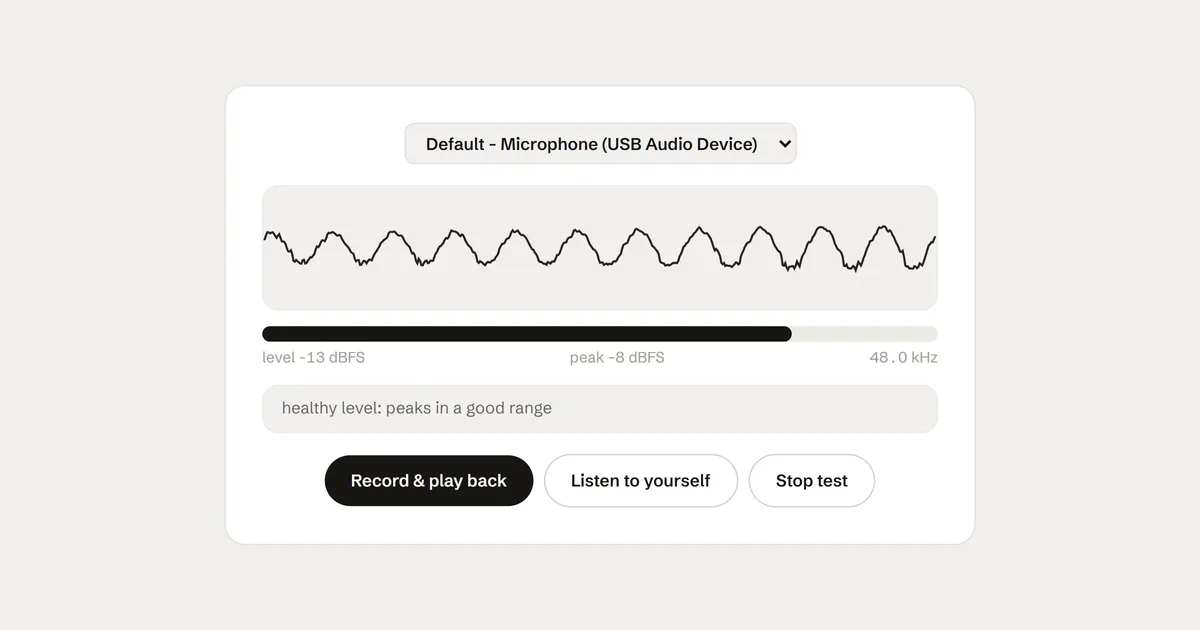
- If you have more than one input, a drop-down list appears above the waveform. Pick the mic you mean to test and the test restarts on it.
- Talk at the volume you really use. The waveform should move and the meter should rise. Under the meter you get a live "level" and "peak" reading in dBFS, where 0 is the ceiling and more negative means quieter.
- Read the hints below the readings. You get "healthy level" when your peaks sit in a good range, or a warning that starts with "very quiet", "very hot" or "clipping". A separate "noisy" warning flags a background that never gets quiet.
- Press Record & play back, say a few sentences, then press the same button to stop (it now reads Stop recording with a timer). A player appears. Press play and listen.
Do not skip step 6. A meter proves there is signal. Playback tells you what the mic really picks up: muffled, distant or buried in hum.
A few details worth knowing:
- It is the unprocessed mic. The test asks the browser to switch off echo cancellation, noise suppression and automatic gain, so expect it to sound less polished than you do on a call.
- Nothing is uploaded. The page does the measuring and the recording itself, on your device. Stop test lets go of the mic when you are done.
- A take can run up to 10 minutes. The download wav link under the player saves it as a 16-bit wav. For proper takes, the voice recorder records from your mic and saves wav or mp3.
- Listen to yourself plays your mic through your output live. Put headphones on first: the tool warns that on speakers it loops into feedback fast.
Mic not working? Check these in order
If the page says "microphone permission was denied, allow it and try again", or the waveform stays flat, work down this list. That message shows whenever the page fails to open a mic, so keep going even if the permission looks fine.
- Browser permission. In Chrome or Edge, click the icon at the left end of the address bar, allow the microphone, then reload the page. Firefox and Safari have the same per-site permission in their settings.
- The system privacy switch. On Windows 11, open Settings, Privacy & security, Microphone and make sure microphone access is on, including the switch for desktop apps (your browser is one). On Windows 10 it is Settings, Privacy, Microphone. On a Mac, open System Settings, Privacy & Security, Microphone, switch on your browser, then quit and reopen it.
- The wrong input. A laptop with a webcam and a headset plugged in can offer three microphones, and the default is often not the one near your mouth. Change it in the drop-down. An XLR mic shows up as its audio interface, not under its own name. A USB mic that does not show up may need another port or cable.
- A hardware mute. Check the inline switch on a headset cable, a flip-up boom arm, the mute button on a USB mic and the mic mute key some laptops have. Most condenser mics on XLR also need 48V phantom power switched on at the interface.
- Level too low or too high. Speech peaking near -12 dBFS is a common target, and 6 dB either side (down to -18, up to -6) still works. Too quiet: raise the input volume in your system sound settings or the gain on the mic or interface, and move closer. Too hot: "very hot" means your peaks are above -6 dBFS, and when the signal hits the ceiling the meter turns red and the "clipping" hint shows. Turn the gain down, because clipped audio is very hard to repair afterwards.
- Another app is holding the mic. On Windows especially, a call app or recording software can take an input for itself. Close anything else that uses the mic and start the test again.
Other ways to test, and when they are the better choice
- Your system's sound settings. Windows (Settings, System, Sound) has a microphone test in its input settings, and macOS (System Settings, Sound, Input) shows a live input level. Start here when the browser cannot find the mic: it tells you whether the computer sees it at all.
- The app's own mic test. Discord (User Settings, Voice & Video) and Zoom (Settings, Audio) each have one. If the problem only happens in one app, test in that app.
- Your recording software. Recording music through an interface? The input meter there is the one that counts, since it uses the driver and settings you will record with.
Common mistakes
- Reading the hints in a pause. The level hints follow the live signal, so "very quiet" often comes up the moment you stop talking. Judge them mid-sentence.
- Blaming the mic for Bluetooth. Switching on a Bluetooth headset's mic typically drops it into a low bandwidth call mode, so you sound muffled. That is the connection, not a fault.
- Fixing noise at the wrong end. If the "noisy" hint shows, move the mic closer to you and away from fans. If the noise is already baked into a take, noise reduction can reduce steady hiss and hum afterwards.
Common questions
Why is my mic so quiet?
Most often you are too far from it or the wrong mic is selected, so start with checks 3 and 5 in the list above. If it runs through an audio interface, turn the gain up there: dynamic XLR mics in particular tend to need a lot of it.
Why does my mic work in the test but not in Discord or Zoom?
Each app chooses its own input, and its default may not be the mic you just tested. Select that mic by name in the app's audio settings, then run the app's own test.
Can I test a mic on my phone?
Yes. The same mic test runs in a phone browser: load it, tap Start mic test and allow the microphone when the phone asks.
Before your next call, stream or take, give the mic test a minute and find out what you sound like before anyone else does.